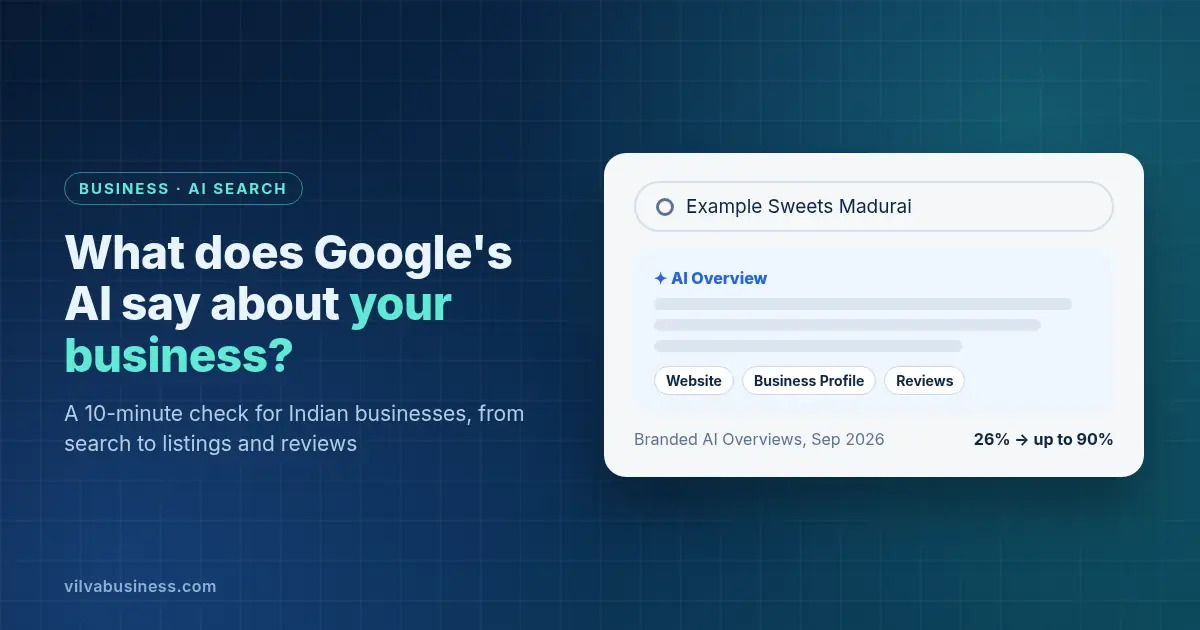
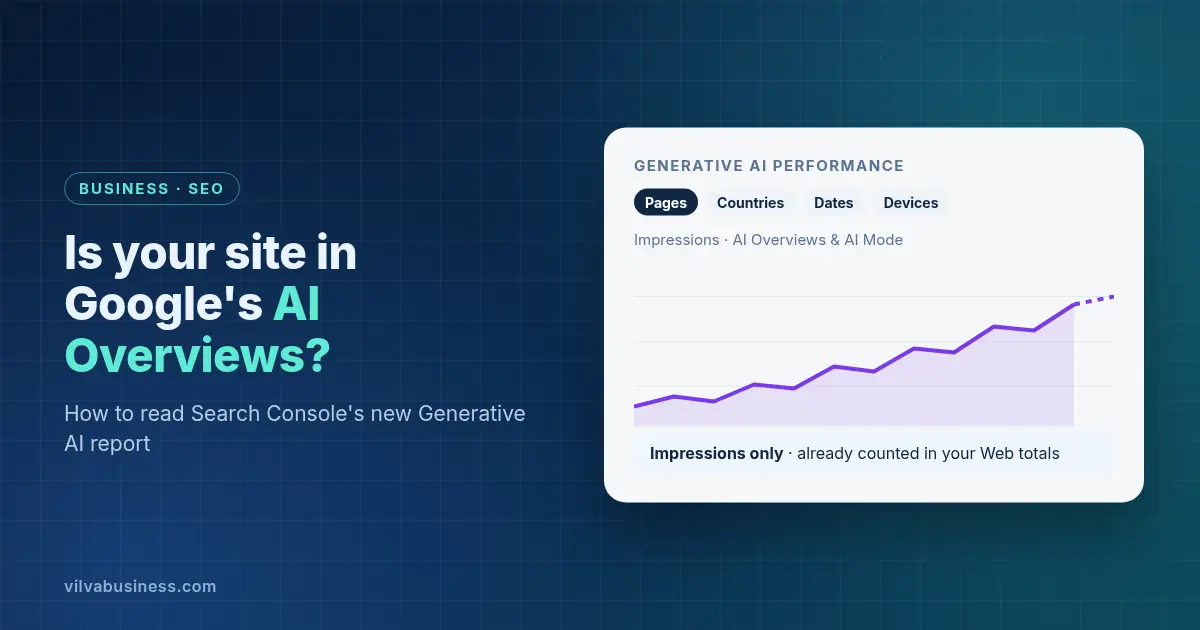
Is your website showing up in Google's AI Overviews? How to read Search Console's new Generative AI report
Last updated: 8 Oct 2026, 11:55 PM IST
Short answer: Open Search Console's Generative AI performance report, available to every site since 31 August 2026. It shows how many times links to your site appeared in AI Overviews and AI Mode, by page, country, device and date. It counts impressions only, and those impressions are already included in your normal Performance report, so don't add the two together.
Until August, you couldn't tell from Search Console whether Google's AI answers were showing your pages. AI Overview and AI Mode traffic was mixed into your normal search numbers. Now Google gives you a separate view. Here's how to open it, what it shows, what it doesn't, and the new setting that launched alongside it.
What is Search Console's Generative AI performance report?
It's a report showing "how your site performs in generative AI features on Google Search", according to Google's help page for the report. Google says: "As of August 31, 2026, we've rolled out these insights to all websites worldwide."
It covers two features today:
- AI Overviews: the AI summary at the top of some search results
- AI Mode: Google's conversational AI search
Google says it will "update this list over time". Search Labs experiments aren't included.
The report uses one metric, impressions: "how many times links to your site were shown to a user in a generative AI feature on Google Search." You can use it to see how those impressions change over time, which pages get the most (or fewest), and which countries and devices they come from.
How do you open and filter the report?
You need a verified Search Console property for your site. If you don't have one, set it up first; it's free.
Step 1: Open the report for your property
Sign in to Search Console and pick your website. Google's help page links straight to the report at search.google.com/search-console/performance/search-analytics/ai. The default view shows impressions for your whole property in AI Overviews and AI Mode.
If you don't see it, Google says this "usually happens when your site hasn't received enough impressions in generative AI features", or because the site has been excluded from them (see the control below).
Step 2: Set the date range
Choose the period you want, such as the last 3 months or a custom range. Two things to know when reading dates:
- Dates are in US Pacific Time. Google says "All dates are in Pacific Time Zone (PT)." For Indian businesses, one report "day" starts at 12:30 PM IST (1:30 PM IST when the US is on standard time, from early November to mid-March).
- The newest data is preliminary. It "might change in the next few hours" and shows as a dotted line on the chart.
Step 3: Pick a dimension tab
The table below the chart groups impressions by the tab you choose:
- Pages: the page Google linked to, usually the canonical URL
- Countries: where the search came from
- Dates: by day, week or month
- Devices: desktop, tablet or mobile
Start with Pages to see which of your pages Google's AI cites most. Then check Countries to see how much comes from India versus elsewhere.
Step 4: Filter by search type, page or country, and compare periods
Use the filter at the top to choose a search type:
- Web: text-based: typed searches
- Web: multimodal: image searches, including Google Lens and Circle to Search
You can also filter to one URL, which switches the chart to that URL's numbers, or compare two date ranges. That's useful for seeing whether a page you updated started appearing more.
Step 5: Export the data
Use the export button to download the chart and table. Google notes that values shown as "~" or "-" in the report "will be zeros in the downloaded data". Keep monthly exports so you can track trends beyond what the screen shows.
What doesn't the report tell you?
Quite a lot, so read it as a visibility signal, not a traffic report:
- No clicks, click-through rate or position. Google describes impressions as the report's data. There are no click, CTR or position figures in it.
- No queries. The dimension tabs are Pages, Countries, Dates and Devices. You can't see which searches triggered the AI answer.
- Totals can differ. Chart totals are counted by property and page rows by page, so "the chart totals can sometimes differ from the table totals."
- Usual limits apply, including the 1,000-row limit in tables.
Clicks from AI Overviews and AI Mode are still recorded. Google counts "Clicking a link to an external page in the AI Overview" as a click (how Search Console counts clicks and impressions). They just sit inside your overall Performance report, not in this one.
Why shouldn't you add these impressions to your Performance report totals?
Because they're already in there. Google says the Generative AI report "includes data from the Web search type in the Performance report". Its AI features guide says sites appearing in AI Overviews and AI Mode "are reported on in the Performance report, within the 'Web' search type."
So if, say, your Performance report shows 50,000 Web impressions and the Generative AI report shows 8,000, your total is still 50,000. The 8,000 is the part of it that came from AI features. You can describe it as a share ("about 16% of our Web impressions came from AI features"), but never as extra traffic.
What is the Search generative AI control, and should you change it?
A setting that launched on the same day. Google's help page says: "As of August 31, 2026, we've rolled out this control to all websites worldwide." You'll find it under Settings > Search generative AI in Search Console. It covers AI Overviews, AI Mode and generative AI features in Google Discover. There are three choices:
- Include your site's links and content in Search generative AI features. This is the default.
- Exclude them. Then "You won't receive any traffic or impressions from these features."
- Inherit the setting from a parent property, the default for properties that have one.
Before you exclude, know what it does and doesn't do:
- Others still appear. "Content from other sites will still be available in those features, and it may appear similar to yours."
- It isn't a ranking signal for the rest of Search, according to Google.
- It doesn't affect AI training. For that, Google points to Google-Extended. To leave Search completely, it points to noindex.
- It takes time. Changes generally take "a few days", with content excluded "within 1-2 days after the control goes live" and some taking longer.
For most Indian businesses that want customers to find them, the default (include) makes sense. If you're considering excluding, check this report first. Google suggests using it to "get an idea of how changing your control may impact traffic to your site."
How should a small business use this report each month?
A simple routine:
- Export the Pages tab for the last full month.
- Compare it with the Performance report for the same pages. Are the pages with AI impressions also getting clicks?
- Check Countries. If you only sell in Tamil Nadu or India, impressions from elsewhere matter less.
- Note what you changed that month (new pages, updated content) and watch whether those pages start appearing.
Google says there's no special trick to appearing in AI features: "There are no additional requirements to appear in AI Overviews or AI Mode, nor other special optimizations necessary." Clear, helpful pages and normal SEO basics do the work. Our answer engine optimisation (AEO) guide covers how to write pages that answer questions directly. For the wider metrics picture, see how to measure if your digital marketing is working. If you'd like help, our digital marketing team handles SEO for Indian businesses.
FAQ
How do I check if my website appears in Google AI Overviews?
Open the Generative AI performance report in Google Search Console, available for all sites since 31 August 2026. It shows how many times links to your site appeared in AI Overviews and AI Mode, grouped by page, country, device or date.
Does the Generative AI report show clicks from AI Overviews?
No. The report shows impressions only, with no clicks, click-through rate, position or queries. Clicks from links in AI Overviews and AI Mode are still counted, but inside your normal Performance report's Web search type, where they can't be separated out.
Should I add Generative AI impressions to my Performance report impressions?
No. Google says the Generative AI report includes data from the Web search type in the Performance report, so those impressions are already in your Web totals. Treat them as a share of your Web impressions, not as extra traffic.
Why can't I see the Generative AI report in Search Console?
Google says this usually happens when your site hasn't received enough impressions in generative AI features. It can also happen if your site has been excluded from Search generative AI features using the Search generative AI control in Search Console settings.
What does excluding my site from Search generative AI features do?
Your links and content stop appearing in AI Overviews, AI Mode and generative AI features in Discover, so you get no traffic or impressions from them. Content from other sites still appears. Google says it isn't a ranking signal for the rest of Search and doesn't affect AI training.
Why do the report's dates look a day off?
Search Console reports dates in US Pacific Time. For Indian businesses, a report day runs from 12:30 PM IST to 12:30 PM IST the next day, or from 1:30 PM IST when the US is on standard time, so recent days may not match your own analytics.
Want us to set up AI-visibility tracking for your site? Vilva Business (Vilva Networks), Chennai can set up Search Console, build a monthly AI-visibility report from this data, and show you which pages to improve. Book a demo.
.webp)
.webp)
.webp)
.webp)
.webp)
.webp)
.webp)
.webp)

.webp)
.webp)
.webp)
.webp)
.webp)